
Manual Nimble Streamer setup
CLOUDflex does not currently provide a generic Nimble Streamer deployment template. Use this walkthrough when an administrator needs to prepare a Nimble-based flow engine manually and then connect it to CLOUDflex Studio.
This procedure installs Nimble Streamer and Live Transcoder on Ubuntu 24.04, registers the server with WMSPanel, installs CLOUDflex Agent, and applies the host-level settings used for NDI, WHIP, and WHEP workflows.
Approximate Setup Time
Section titled “Approximate Setup Time”Allow approximately 60–90 minutes when the host, network rules, domain name, public IP address, WMSPanel credentials, and transcoder license are ready. DNS propagation, access approvals, troubleshooting, and representative load testing may require additional time.
Before You Begin
Section titled “Before You Begin”Prepare DNS
Section titled “Prepare DNS”Have the server’s static public IPv4 address and the domain name you will use for Nimble before starting this procedure.
- Create a public DNS
Arecord that points the domain name to the server’s public IPv4 address. - Wait for the record to become available through public DNS.
Plan the security-group and host-firewall rules before installing Nimble. The table below uses CLOUDflex’s suggested media ranges and Nimble’s standard listener ports:
| Service | Port | Protocol / direction | Note |
|---|---|---|---|
| Certbot HTTP-01 | 80 |
TCP inbound | Not needed for DNS-01. |
| HTTPS and secure playback | 443 |
TCP inbound | WHIP/WHEP signaling, HLS, and SLDP. |
| Nimble HTTP playback | 8081 |
TCP inbound | Default HLS and SLDP listener. |
| RTMP | 1935 |
TCP inbound | Default listener. |
| RTMPS | Configured TLS port | TCP inbound | Commonly 443; avoid conflicts with the HTTPS listener. |
| SRT | 5000–5100 |
UDP, required direction | Suggested range. |
| WHEP media | 10000–10100 |
UDP inbound/outbound | Suggested range; set it in whep_config.json. |
| WHIP media | Selected range | UDP inbound/outbound | Use a separate range in whip_input.json. |
| Downloads and registration | 443 |
TCP outbound | Nimble, WMSPanel, and CLOUDflex services. |
These are planning defaults, not a reason to expose every port publicly. Limit source and destination ranges where practical, and omit rules for protocols the production does not use. If port or ssl_port has been customized in nimble.conf, use the configured listener instead of 8081 or 443.
Prepare the following:
- An x86-64 host running Ubuntu 24.04 LTS with current security updates.
sudoaccess to the host.- Reliable internet access and DNS resolution.
- The static public IPv4 address and domain name prepared above.
- A WMSPanel account and the WMSPanel credential that CLOUDflex will use for this environment.
- Network rules for every contribution, delivery, management, and NDI path used by the production.
- A valid TLS certificate and HTTPS termination for public WHIP or WHEP endpoints.
- Outbound HTTPS access to the Nimble package repository, WMSPanel, and the approved CLOUDflex deployment-resource endpoint.
For internet-facing WebRTC, allow the configured HTTPS signaling port and the UDP media range selected for the deployment. Keep the range and source scope as narrow as the workflow permits. See AWS Self-Hosted Prerequisites for network-planning guidance.
Nimble features and licenses are separate from CLOUDflex. Confirm the WMSPanel subscription, Nimble packages, Live Transcoder license, and codec support required by the planned workflow before the show.
Install and Register Nimble Streamer
Section titled “Install and Register Nimble Streamer”-
Update the host:
Terminal window sudo apt-get updatesudo apt-get upgrade -
Add the Nimble Streamer repository for Ubuntu 24.04:
Terminal window sudo curl -o /etc/apt/sources.list.d/nimble.sources \https://nimblestreamer.com/ubuntu/nimble.sources -
Install Nimble Streamer:
Terminal window sudo apt-get updatesudo apt-get install nimble -
If the flow engine will use SRT, install one supported SRT package. Do not install both variants:
Terminal window sudo apt-get install nimble-srtUse
nimble-srt-1.5instead only when the production has been tested against that library version. -
Install Live Transcoder:
Terminal window sudo apt-get install nimble-transcoder -
Register the host with WMSPanel:
Terminal window sudo /usr/bin/nimble_regutilEnter the WMSPanel credentials when prompted. Do not place the password in shell history or an unattended script.
-
Register the Live Transcoder license:
Terminal window sudo /usr/bin/nimble_regutil --transcoder-license <transcoder_license_key>Enter the WMSPanel credentials when prompted. Replace
<transcoder_license_key>with the license key issued by WMSPanel. -
Confirm that Nimble is running and that the server appears in WMSPanel:
Terminal window sudo systemctl status nimble --no-pager
Follow Softvelum’s current Nimble Streamer installation procedure or Live Transcoder installation procedure if its repository, package, or registration instructions differ from the commands above.
Configure WMSPanel API Access
Section titled “Configure WMSPanel API Access”CLOUDflex uses the WMSPanel API to manage Nimble-based flow engines. Before adding the WMSPanel credential to CLOUDflex, allow both CLOUDflex backend outbound IP ranges:
52.10.69.179- In WMSPanel, open Control, then API setup.
- Open the Pull API tab and enable API access if it is disabled.
- Add each CIDR range shown above to the API whitelist.
- Save the WMSPanel settings.
- Copy the Client ID and generate an API key for the CLOUDflex credential. Store both values in your approved secrets system.
WMSPanel checks the source address of every API request. CLOUDflex may use any address in either CIDR range, so both complete ranges must remain in the whitelist. Do not substitute the CLOUDflex website address or domain name. See the WMSPanel API reference for additional details.
Install CLOUDflex Agent
Section titled “Install CLOUDflex Agent”CLOUDflex Agent is a command-line utility, not a continuously running service. A generic Nimble host is not created by Deploy Manager, so install the Linux x64 binary manually from the same approved deployment-resource location used by supported CLOUDflex deployment workflows.
-
Download the binary:
Terminal window sudo curl --fail --location \https://deploy-resources.cloudflex.studio/agent/CLOUDflex-Agent-linux \--output /usr/local/bin/CLOUDflex-Agent -
Make it executable and restrict changes to administrators:
Terminal window sudo chown root:root /usr/local/bin/CLOUDflex-Agentsudo chmod 0755 /usr/local/bin/CLOUDflex-Agent -
Confirm that the binary starts and review its available commands:
Terminal window /usr/local/bin/CLOUDflex-Agent --help
Configure NDI discovery
Section titled “Configure NDI discovery”The Agent writes NDI configuration for the account that runs it. Identify the account that starts the NDI-capable process, then run the Agent as that account. Replace the example address with the reachable NDI Discovery Server address for the environment:
sudo -u <service-account> /usr/local/bin/CLOUDflex-Agent \ ndi-access --tcp -d <discovery-server-address>The Discovery Server must already be running and reachable. Restart or reload the NDI-capable application after changing its configuration, then confirm that the expected sources are visible.
See CLOUDflex Agent for the files it manages and its responsibility boundaries.
Configure nimble.conf
Section titled “Configure nimble.conf”WMSPanel registration writes host-specific values to /etc/nimble/nimble.conf. After registration, back up the file:
sudo cp /etc/nimble/nimble.conf /etc/nimble/nimble.conf.backupKeep the registration values written by nimble_regutil. Confirm that the settings below are not already present, then append them to the existing file.
For a CLOUDflex flow engine that needs WHIP ingest, WHEP playback, and NDI constant-bitrate output, use this baseline:
webrtc_whip_support = truewebrtc_whep_support = trueaccess_control_allow_headers = content-type,locationaccess_control_expose_headers = locationtranscoder_change_params_on_the_fly_enabled = truendi_cbr_enabled = trueThis command appends the same block without replacing the existing configuration:
sudo tee -a /etc/nimble/nimble.conf > /dev/null <<'EOF'
# CLOUDflex WHIP, WHEP, and NDI settingswebrtc_whip_support = truewebrtc_whep_support = trueaccess_control_allow_headers = content-type,locationaccess_control_expose_headers = locationtranscoder_change_params_on_the_fly_enabled = truendi_cbr_enabled = trueEOFwebrtc_whip_supportenables WHIP ingest processing.webrtc_whep_supportenables WHEP playback.- The access-control settings allow browser clients to complete WHIP and WHEP signaling.
transcoder_change_params_on_the_fly_enabledallows the Live Transcoder changes used by WebRTC workflows.ndi_cbr_enabledenables constant-bitrate behavior for NDI output used by the CLOUDflex workflow.
The NDI setting is required for this CLOUDflex configuration, but it is not currently listed in Softvelum’s public parameter reference. Confirm it against the installed Nimble/NDI package when changing package versions.
WHIP and WHEP also require matching WMSPanel applications, codecs, TLS, and network rules. These flags do not create endpoints or open firewall ports by themselves. Configure WHIP publishing credentials or publish control for the input application. Enable WHEP in WMSPanel either for the intended output application or at the server level.
Follow Softvelum’s current WHIP ingest setup and WHEP playback setup when configuring the matching WMSPanel applications.
Reference tuning
Section titled “Reference tuning”Start with Nimble’s defaults and change thread counts only after a representative load test shows a bottleneck. Arbitrarily increasing every worker count can consume memory and add scheduling overhead without increasing throughput.
The most relevant optional nimble.conf settings for this workflow are:
| Setting | Change it when |
|---|---|
worker_threads |
HTTP signaling or delivery is constrained on one worker. |
webrtc_whep_worker_threads |
WHEP session processing is constrained under the expected viewer load. |
webrtc_whep_max_viewers |
The planned viewers per WHEP worker exceed the supported baseline. |
mpeg2ts_camera_threads |
Heavy MPEG-TS ingest concentrates CPU use on one processing thread. |
live_pull_threads |
A large number of pulled live sources constrains a single pull worker. |
rtmp_camera_worker_threads |
Published RTMP ingest is constrained on one worker. |
Append only the parameters justified by the test results, using integer values sized for the host. Record the previous values and change one group at a time. Softvelum documents defaults and workload-specific guidance in its configuration parameter reference.
Also verify the host outside Nimble:
- Keep CPU headroom for traffic bursts and failover events.
- Confirm NIC bandwidth in both directions at the planned aggregate bitrate.
- Monitor packet loss, retransmissions, CPU per core, memory, and Nimble logs during the load test.
- Use a low-latency network path between NDI senders, receivers, and the Discovery Server.
- Keep the operating system and Nimble packages on versions validated for the production.
Configure WebRTC Networking on AWS
Section titled “Configure WebRTC Networking on AWS”An EC2 instance normally sees its private address on the host while AWS maps a public IPv4 address or Elastic IP to it. Nimble must advertise the mapped public address in its ICE candidates. Create one configuration file for WHIP ingest and a separate file for WHEP playback.
Choose UDP ranges that are approved for the production. The examples below use <public-ipv4>, <whip-port-min>, <whip-port-max>, <whep-port-min>, and <whep-port-max> as values to replace, not literal configuration values.
-
Create
/etc/nimble/whip_input.json:{"NAT1To1IPs": "<public-ipv4>","NAT1To1CandidateType": "host","PortMin": <whip-port-min>,"PortMax": <whip-port-max>} -
Create
/etc/nimble/whep_config.json:{"NAT1To1IPs": "<public-ipv4>","NAT1To1CandidateType": "host","PortMin": <whep-port-min>,"PortMax": <whep-port-max>} -
Validate both files before testing a session:
Terminal window python3 -m json.tool /etc/nimble/whip_input.jsonpython3 -m json.tool /etc/nimble/whep_config.json -
Allow inbound UDP for both selected ranges in the instance security group and any host firewall. The configured ranges and firewall rules must match exactly.
Nimble reads the applicable JSON file at the beginning of each new WHIP or WHEP session, so changing these files does not require a service restart. Existing sessions keep their current ICE configuration.
You can use ICEUDPMuxPort instead of PortMin and PortMax when the network design requires one UDP port per protocol. WHIP and WHEP cannot use the same ICEUDPMuxPort; assign a different port to each file and allow both ports through the security group.
Obtain and Install a Public TLS Certificate
Section titled “Obtain and Install a Public TLS Certificate”WHIP and WHEP clients need a publicly trusted certificate whose name matches the Nimble endpoint. Before requesting it:
- Create a public DNS record, such as
stream.example.com, that resolves to the host. - Allow inbound TCP
80for an HTTP-01 challenge and TCP443for Nimble HTTPS. - Confirm that no other service is using the port Certbot needs for validation.
- Use a DNS-01 challenge instead when the host cannot accept public traffic on TCP
80.
The commands below use Certbot’s standalone HTTP-01 mode. Replace stream.example.com and the contact address with values approved for the environment. Do not put private keys, account credentials, or real internal hostnames in documentation or source control.
-
Install Certbot from the recommended snap package:
Terminal window sudo snap install coresudo snap refresh coresudo snap install --classic certbotsudo ln -s /snap/bin/certbot /usr/local/bin/certbot -
Request the certificate:
Terminal window sudo certbot certonly --standalone \--domain stream.example.com \--agree-tos \--no-eff-emailCertbot stores the active certificate and key under
/etc/letsencrypt/live/stream.example.com/. Protect this directory. Never copyprivkey.peminto the documentation repository, a ticket, or chat. -
Add the HTTPS listener and certificate paths to
/etc/nimble/nimble.conf:ssl_port = 443ssl_certificate = /etc/letsencrypt/live/stream.example.com/fullchain.pemssl_certificate_key = /etc/letsencrypt/live/stream.example.com/privkey.pemKeep the private key unencrypted for unattended Nimble startup and protect it with filesystem permissions. Do not add
ssl_certificate_key_passunless your operating procedure securely supplies and manages an encrypted-key password. -
Confirm that TCP
443is not already bound by another process, then restart Nimble during a maintenance window:Terminal window sudo ss -ltnp | grep ':443 'sudo systemctl restart nimblesudo systemctl status nimble --no-pager -
Verify the certificate presented by the public endpoint:
Terminal window curl --verbose https://stream.example.com/A Nimble response may not be a normal web page. The important checks are that the TLS handshake succeeds, the certificate name matches, and the chain is trusted.
Renew the certificate
Section titled “Renew the certificate”Certbot installs automatic renewal. Test it before relying on it:
sudo certbot renew --dry-runNimble must reload the renewed files before it presents the new certificate. Choose one of these production procedures:
- Restart Nimble in a planned maintenance window after renewal.
- Configure Nimble’s authenticated, loopback-only management API and call
/manage/reload_ssl_certificatesfrom a restricted Certbot deploy hook.
Do not expose an unauthenticated Nimble management API to the network. A service restart can interrupt active sessions, so do not attach an automatic restart hook until its production impact has been tested and accepted.
After a real renewal, confirm the certificate dates from an external client and test both WHIP ingest and WHEP playback.
Apply and Verify the Configuration
Section titled “Apply and Verify the Configuration”-
Restart Nimble to load
nimble.conf:Terminal window sudo systemctl restart nimble -
Confirm that the service remains active:
Terminal window sudo systemctl status nimble --no-pager -
Review recent errors:
Terminal window sudo journalctl -u nimble --since "10 minutes ago" --no-pager -
Confirm the server is online in WMSPanel.
-
Test WHIP ingest and WHEP playback from the same networks the production will use.
-
Confirm the expected NDI sources and receivers are visible.
-
Run a representative load test and record CPU, memory, network, and session behavior.
-
Confirm that both CLOUDflex backend CIDR ranges remain in the WMSPanel API whitelist.
-
Add the WMSPanel application credential to CLOUDflex, then configure and test a non-critical flow before show day.
If Nimble does not start after the edit, restore the backup, restart the service, and review the journal before making another change:
sudo cp /etc/nimble/nimble.conf.backup /etc/nimble/nimble.confsudo systemctl restart nimbleCreate the Transcoder Templates
Section titled “Create the Transcoder Templates”Paused transcoder scenarios cannot currently be imported reliably. Create the three CLOUDflex templates manually on each new Nimble server instead of importing them from another server.
Use these conventions for every template:
- Enter the documented scenario name and the description
Do not Edit Managed by CLOUDFLEXexactly. - Leave Out-of-process unchecked.
- Enter
input,id, andNDIexactly as shown. These are literal placeholders used by the CLOUDflex workflow. - Save the scenario, open it in WMSPanel, and copy its scenario ID from the page URL.
- Record the ID against the matching CLOUDflex template field, then pause the scenario before adding the flow engine to CLOUDflex.
Create the NDI input template
Section titled “Create the NDI input template”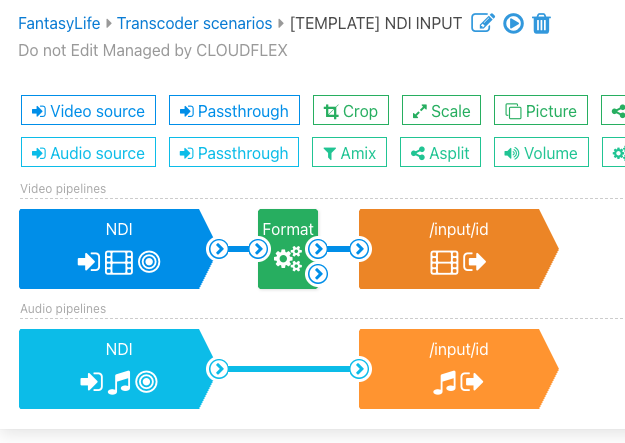
- In WMSPanel, create a transcoder scenario named
[TEMPLATE] NDI INPUT. - Build the video pipeline:
- Add an NDI input.
- Add a custom Format filter with the filter name
formatand parameterspix_fmts=yuv420p. - Add a stream output with application name
inputand stream nameid. - Set the video encoder to
libx264, codec to H.264, key-frame alignment to interval, and key-frame interval to2000ms. - Add the encoder parameter
preset=ultrafast.
- Build the audio pipeline:
- Add an NDI input.
- Add a stream output with application name
inputand stream nameid. - Set the encoder to FFmpeg and the codec to AAC. Leave custom parameters empty.
- Save the scenario, copy its ID from the WMSPanel URL, and record it as the NDI Input Template ID.
- Pause the scenario.
Create the NDI output template
Section titled “Create the NDI output template”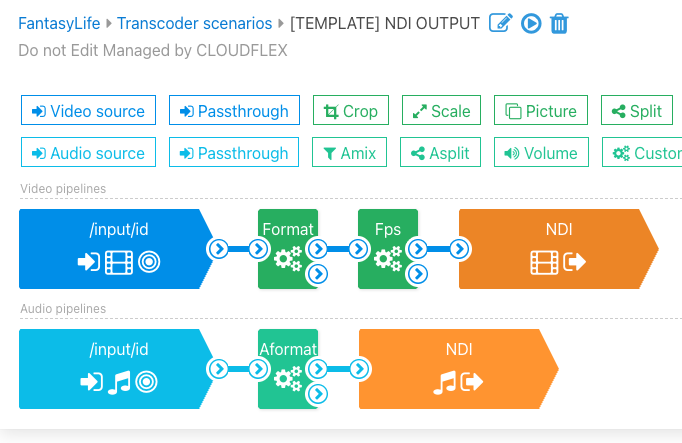
- In WMSPanel, create a transcoder scenario named
[TEMPLATE] NDI OUTPUT. - Build the video pipeline:
- Add a stream input with application name
inputand stream nameid. Use the Default decoder and select Main stream. - Add a custom Format filter with the filter name
formatand parameterspix_fmts=yuv420p. - Add a custom Fps filter with the filter name
fpsand parameters30. - Add an NDI output with the NDI name
NDI.
- Add a stream input with application name
- Build the audio pipeline:
- Add a stream input with application name
inputand stream nameid. Use the Default decoder and select Main stream. - Add a custom Aformat filter with the filter name
aformatand parameterssample_fmts=fltp. - Add an NDI output with the NDI name
NDI.
- Add a stream input with application name
- Save the scenario, copy its ID from the WMSPanel URL, and record it as the NDI Output Template ID.
- Pause the scenario.
Create the WebRTC output template
Section titled “Create the WebRTC output template”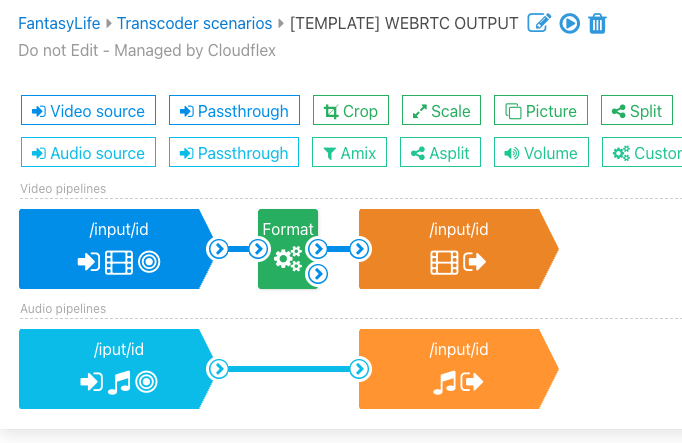
- In WMSPanel, create a transcoder scenario named
[TEMPLATE] WEBRTC OUTPUT. - Build the video pipeline:
- Add a stream input with application name
inputand stream nameid. Use the Default decoder and select Main stream. - Add a stream output with application name
inputand stream nameid. - Set the video encoder to
libx264, codec to H.264, key-frame alignment to interval, and key-frame interval to2000ms. - Add the encoder parameters
preset=ultrafast,tune=film, andprofile=baseline.
- Add a stream input with application name
- Build the audio pipeline:
- Add a stream input with application name
inputand stream nameid. Use the Default decoder and select Main stream. - Add a stream output with application name
inputand stream nameid. - Set the encoder to FFmpeg and the codec to
libopus. Leave custom parameters empty.
- Add a stream input with application name
- Save the scenario, copy its ID from the WMSPanel URL, and record it as the WebRTC Output Template ID.
- Pause the scenario.
Connect the Flow Engine to CLOUDflex
Section titled “Connect the Flow Engine to CLOUDflex”Add a WMSPanel credential
Section titled “Add a WMSPanel credential”Have the WMSPanel Client ID and API key available. Follow Add a credential and select WMS Panel as the credential type. CLOUDflex does not display the secret again after it is saved.
Add the flow engine
Section titled “Add the flow engine”Before adding this host to Flow Manager, gather the following details:
- A clear name for the flow engine.
- The saved WMS Panel credential.
- The public domain name prepared for this host.
- The WMSPanel Server ID.
- The NDI Input Template ID, NDI Output Template ID, and WebRTC Output Template ID recorded in Create the Transcoder Templates.
- The associated CLOUDflex Instance ID, if applicable. This value is optional.
When the details are ready, follow Add a Flow Engine to connect the host. Select Nimble as the engine type and use the saved WMS Panel credential.