
Operator quickstart
Use this checklist to prepare your workstation and open your first remote production session.
1. Join CLOUDflex
Section titled “1. Join CLOUDflex”- Open the invitation sent by your administrator.
- Sign in or create an account with the invited email address.
- Accept the invitation.
- Confirm the expected organization and environment appear in CLOUDflex Studio.
If you do not have an invitation, open CLOUDflex Studio, select Sign up, and create an account. Ask an administrator to grant access to the production environment and Instance Manager before show day.
2. Prepare Your Workstation
Section titled “2. Prepare Your Workstation”For regular operation, use:
- a current Windows, macOS, or Linux computer supported by Amazon DCV;
- two 1920 × 1080 monitors;
- 30–50 Mbps of available download bandwidth for two displays;
- a wired network connection where practical; and
- an optional programmable control surface, such as a Stream Deck, for shortcuts in your production application.
Bandwidth is a planning allowance, not a guaranteed minimum. Moving video, high frame rates, latency, and packet loss affect performance. Test from the operator’s real location before the show. Confirm control-surface drivers, profiles, and any required device redirection with your administrator.
Your network must reach the DCV service. Amazon DCV uses TCP port 8443 by default, although your organization may configure a different port.
3. Install Amazon DCV
Section titled “3. Install Amazon DCV”- Check the official Amazon DCV client requirements.
- Open the Amazon DCV download page.
- Download the client for Windows, macOS, or Linux—not the server package.
- Run the installer for your platform and open the client. Windows operators may use the installable or portable client.
The native client is recommended for multi-monitor production work. Use the browser connection only when installing the client is not practical.
4. Connect to Your First Instance
Section titled “4. Connect to Your First Instance”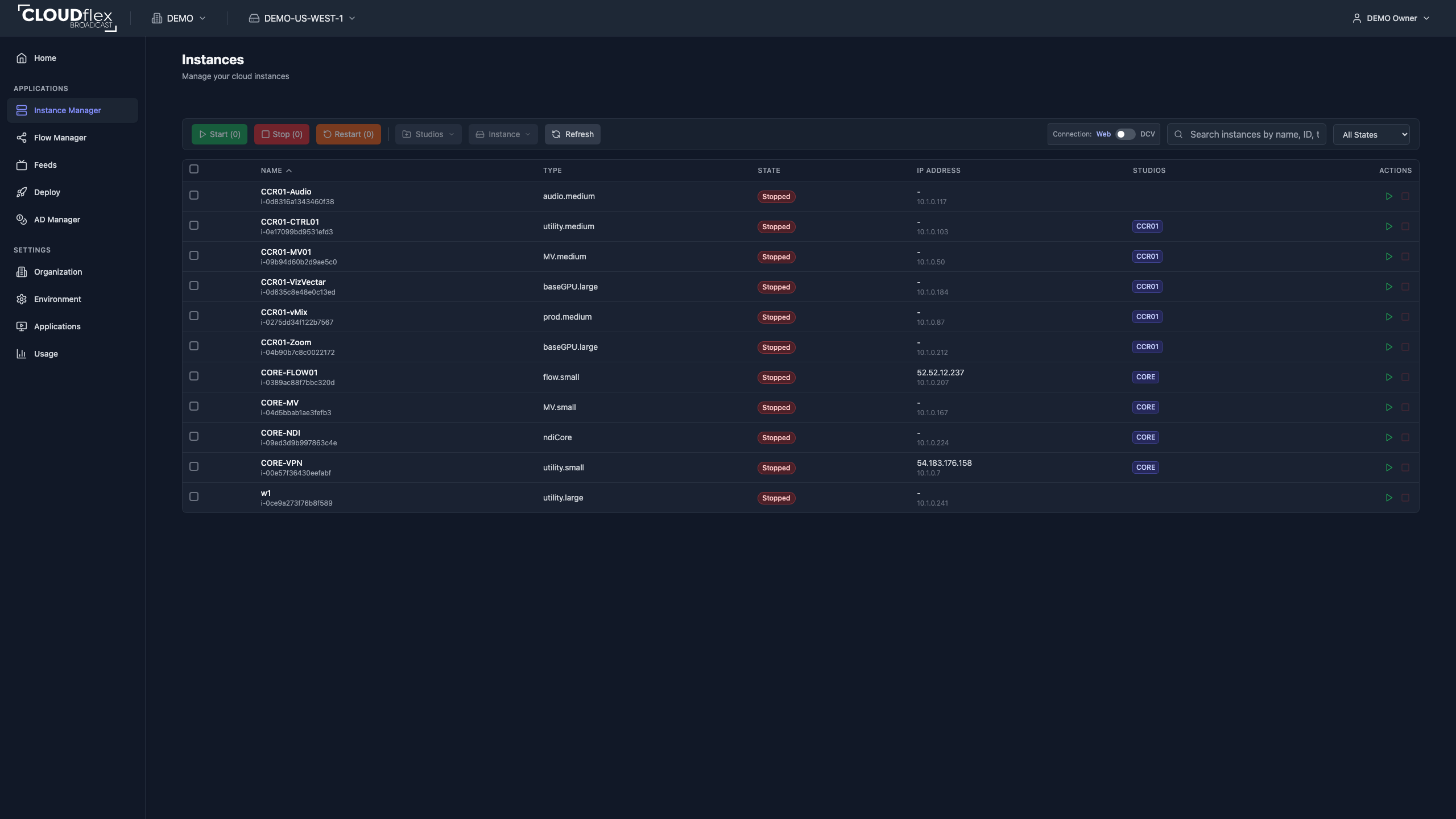
- In Studio, confirm the correct organization and environment.
- Open Instance Manager and find your assigned instance.
- If it is stopped, start it and wait for
running. Startup normally takes 3–4 minutes, and the DCV session may need a little longer. - Choose NICE DCV as the connection type, then select the instance’s connect control. NICE DCV is the former name of Amazon DCV and may still appear in Studio.
- Allow your browser to open the Amazon DCV client.
- Confirm the remote desktop spans the intended monitors and the production application responds.
If the instance, organization, or environment is missing, ask your administrator to check your access. If the instance is running but the session will not open, wait briefly and try again, then see Connect to instances.